RESIDEO | TOTAL CONNECT 2.0 | FIRST ALERT
Control Resideo, Honeywell Home, and First Alert devices using Brilliant - including security systems, thermostats, cameras, leak detectors, and more.
Key Experiences




Supported Devices


Z-Wave Devices


Frequently Asked Questions
Setting up your Honeywell Home and Resideo devices with Brilliant
Before you begin, make sure your device is set up within your Resideo(previously called Honeywell Home) app.
Then, go back to your Brilliant Control and follow the steps below:
- Go to your Home Screen
- Tap "Add New Device" on the bottom tray
- Tap "Resideo".
- Check your email for a message from Brilliant. Follow the instructions to log into your Resideo account.
- Tap the Honeywell Home device(s) you'd like to add to each room and follow the remaining screen setup instructions.
Setting up Total Connect 2.0 System
Before you begin to set up, make sure your Total Connect 2.0 devices and Brilliant Control are connected to Wi-Fi.
Note: Total Connect 2.0 devices can be added via the Brilliant Control or the Brilliant Mobile App.
- Tap "Add Device" tab on the bottom of Home Screen.
- Tap "Total Connect 2.0".
- Tap “Continue“ to receive a link in your Brilliant home email.
- Click on the link and log into your Total Connect 2.0 account on the webpage.
- Select the devices you wish to connect with Brilliant and select “Automation“ if you would like to integrate Z-Wave devices. Click “Connect“.
- Once the authorization is successful, return to the Brilliant Control to tap “Continue“.
- Tap all the Total Connect 2.0 devices you would like to add to the Brilliant home.
- Select the rooms that you would like to add each device to.
- For each Total Connect 2.0 Security System added, you will be asked to select the Control(s) you’d like as part of the Daily Experience.
How to Connect Your First Alert Account
- On your Brilliant Control, go to Settings
- Select Works With
- Tap First Alert
- Sign in with your First Alert account credentials
- Your compatible devices will appear and can be added to Brilliant
Note: You will only be able to connect your First Alert account and add devices from a Brilliant Control. Once you do that, the devices will appear in the Brilliant Mobile app. We will be adding to the mobile app in the future.
If You Have an Existing Resideo App Account Linked
If you previously connected a Resideo (formerly Honeywell Home) account to Brilliant, adding a First Alert account will remove those Resideo-linked devices from Brilliant. So you can only have 1 app connected to Brilliant - Resideo (formerly Honeywell Home) OR First Alert.
If you’d like to stop using Resideo app and start using First Alert with Brilliant, you can:
- Add your Resideo devices to the First Alert app
- Re-add them to Brilliant using the new First Alert integration
If You Have an Existing Total Connect 2.0 Account Linked
If you have a Total Connect 2.0 account linked to Brilliant, those integrations continue to work as before. You do not need to switch to First Alert and you can have both TC 2.0 and First Alert apps connected to Brilliant at the same time.
You can arm/disarm your Resideo security system by using Brilliant Control or mobile appliatcation as a secondary panel with Resdieo ProSeries, Vista, Lynx, and Lyric panels.
You can view doorbells and security cameras on your Brilliant control and mobile app
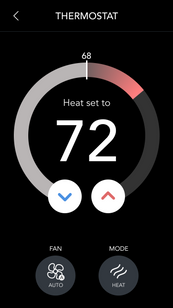
You can control your Honeywell Home thermostats and adjust your temperature and create home automation scenes that include climate.
You can receive alerts when there are water leaks, frozen pipes, high temperature, humidity, and high levels of carbon monoxide
Using your Brilliant Control you can arm or disarm in the following ways:
Using the Security Widget on your Lock Screen
Creating a shortcut of your home screen to arm/disarm your devices.
Using the Security Icon on the bottom navigation bar
Accessing the Rooms Icon on your bottom navigation bar, you can arm or disarm particular rooms.
Using your Brilliant Mobile App you can arm or disarm:
By tapping the Security icon and arming or disarming
By tapping the Rooms icon and arming or disarming different rooms
Read more here
You can access Live View of your Resideo security cameras in the following ways:
Tap Security Icon > View Cameras
or
Tapping on your Camera Shortcut
or
Tapping on your Rooms Icon
Read more here
By connecting a Resideo Skybell doorbell, Ring Doorbell, or Google Doorbell to your Brilliant Control, you can view your doorbell camera on your Brilliant Control when someone rings your doorbell.
Before adding your Z-wave devices to your Brilliant Smart Home, you will need to add them to your Resideo Total Connect Security system. After you have configured your devices to your Resideo Total Connect, you can connect them to your Brilliant Control by following instructions here